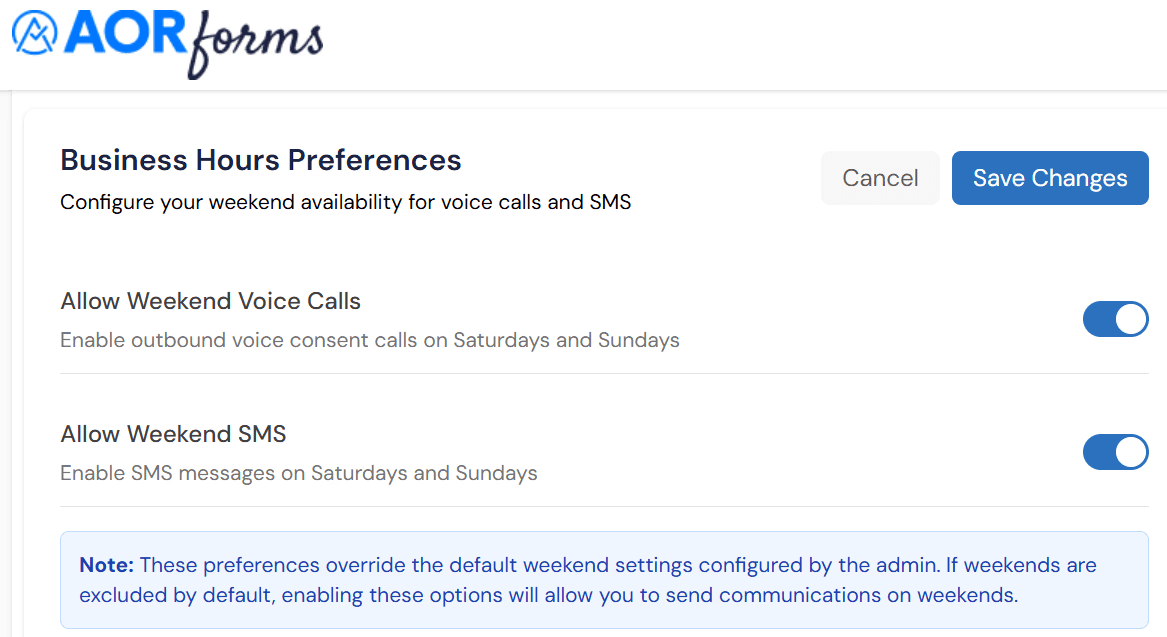
This tutorial explains how to override restrictions for sending SMS outside of business hours
Go to
1. Introduction
You will learn to adjust your profile preferences to enable this feature.
2. Navigate To Dashboard
Click the Dashboard to access the main control panel where you can manage your settings and preferences.
3. Open My Profile
Click My Profile to view and modify your personal account settings related to communication preferences.
4. Access Edit Preferences
Click Edit Preferences to open the section where you can customize your notification and messaging options.
5. Enable SMS Override
Click the option to enable overriding restrictions for sending SMS outside of business hours.
6. Turn On SMS Override
Enter your preference to turn on the SMS override feature, allowing messages to be sent at any time.
7. Save Preference Changes
Click Save Changes to apply your new SMS sending preferences and ensure the override is activated.
You have successfully overridden the restrictions for sending SMS outside of business hours by updating your profile preferences. This enables you to send messages at any time without limitation.